News1.0.5: “Save this” is back after the ChatGPT redesign
NewsChatGPT redesign: “Save this” and “Save page” don’t work for now

Inspiration Collector · Web clipper for AI agents Turn the web into material your AI can read

Web pages, selected text, images and ChatGPT, Claude or Perplexity chats. One click saves them to a folder on your own computer.

Free Chrome extension

Desktop Chrome on Windows and Mac

See requirements

This is a free extension for Chrome on a computer. It can’t be installed on a phone, so send the link to your computer and install it there:

Press and hold the link below to copy it:

https://collector.jerromy.com/en/

Email it to myselfOn a computer? Add to Chrome directly
Final frame of the video, resting on the mark: the Inspiration Collector mark and name, the line “Material for AI agents”, and three tags: Free, No account, No upload
63-second intro video

What the video shows: things you find online end up scattered across bookmarks, screenshots, downloads and chat windows. A page, a selection, an image or one AI reply: one click drops it into a folder on your own computer, sorted by topic. No server, no account. Then Claude Code, Codex or Gemini CLI reads that folder, with a source for every item.

Works on

  • ChatGPT
  • Claude
  • Perplexity
  • Website

The extension itself

  • 0servers
  • 0accounts
  • 0trackers

How it works

Keep it in one place. Let your AI read it.

Your research ends up scattered across bookmarks, screenshots, your downloads folder and a pile of chat windows. When you want an AI to sort it out, you don’t know what to hand it.

  1. Pick a folder

    Any ordinary folder on your disk. You choose it.

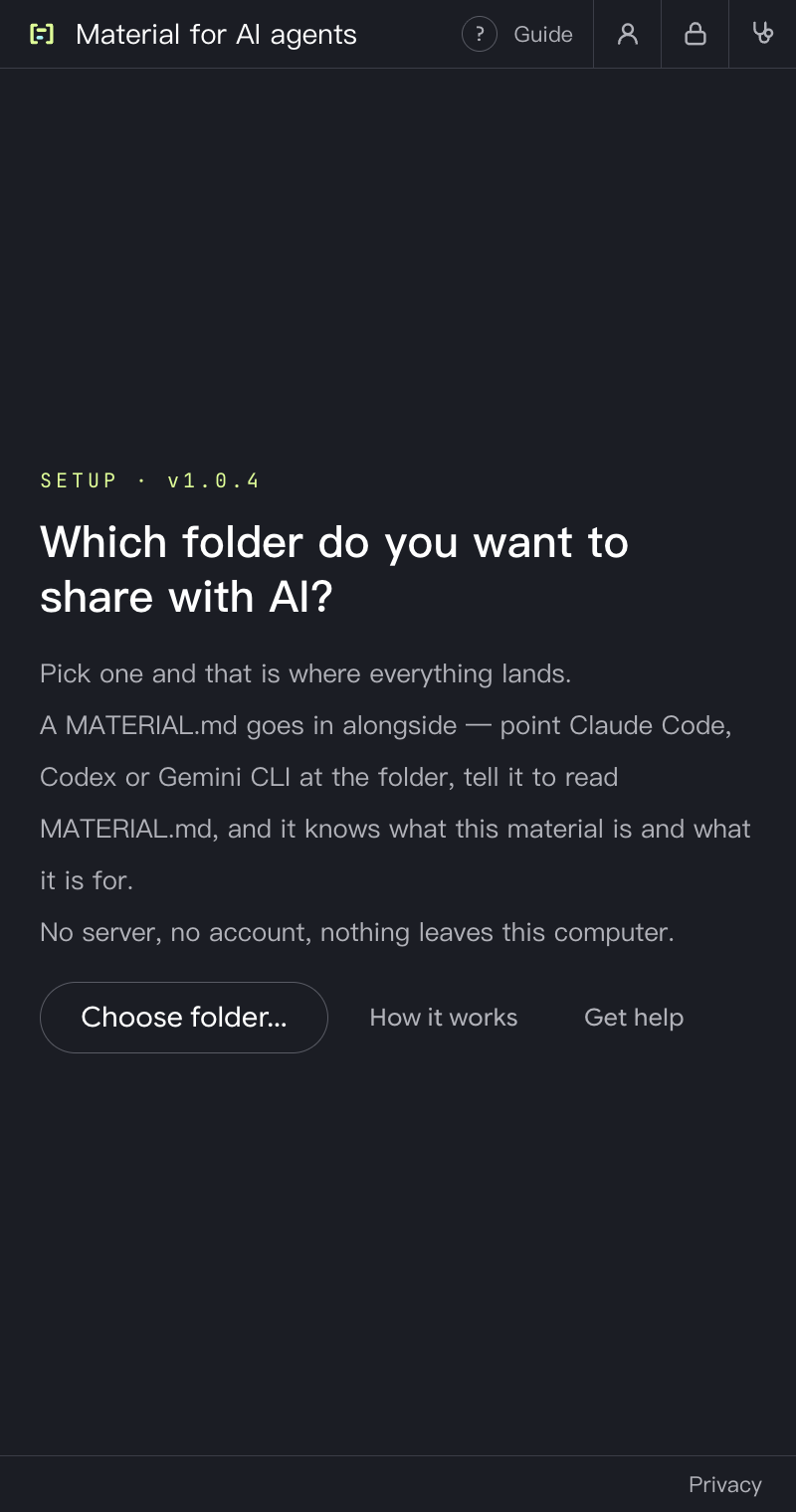
    The side panel’s first screen asks “Which folder do you want to share with AI?”, with a “Choose folder…” button below
  2. Save what’s useful

    Whole pages, selected text, images, AI replies. One click and it’s saved.

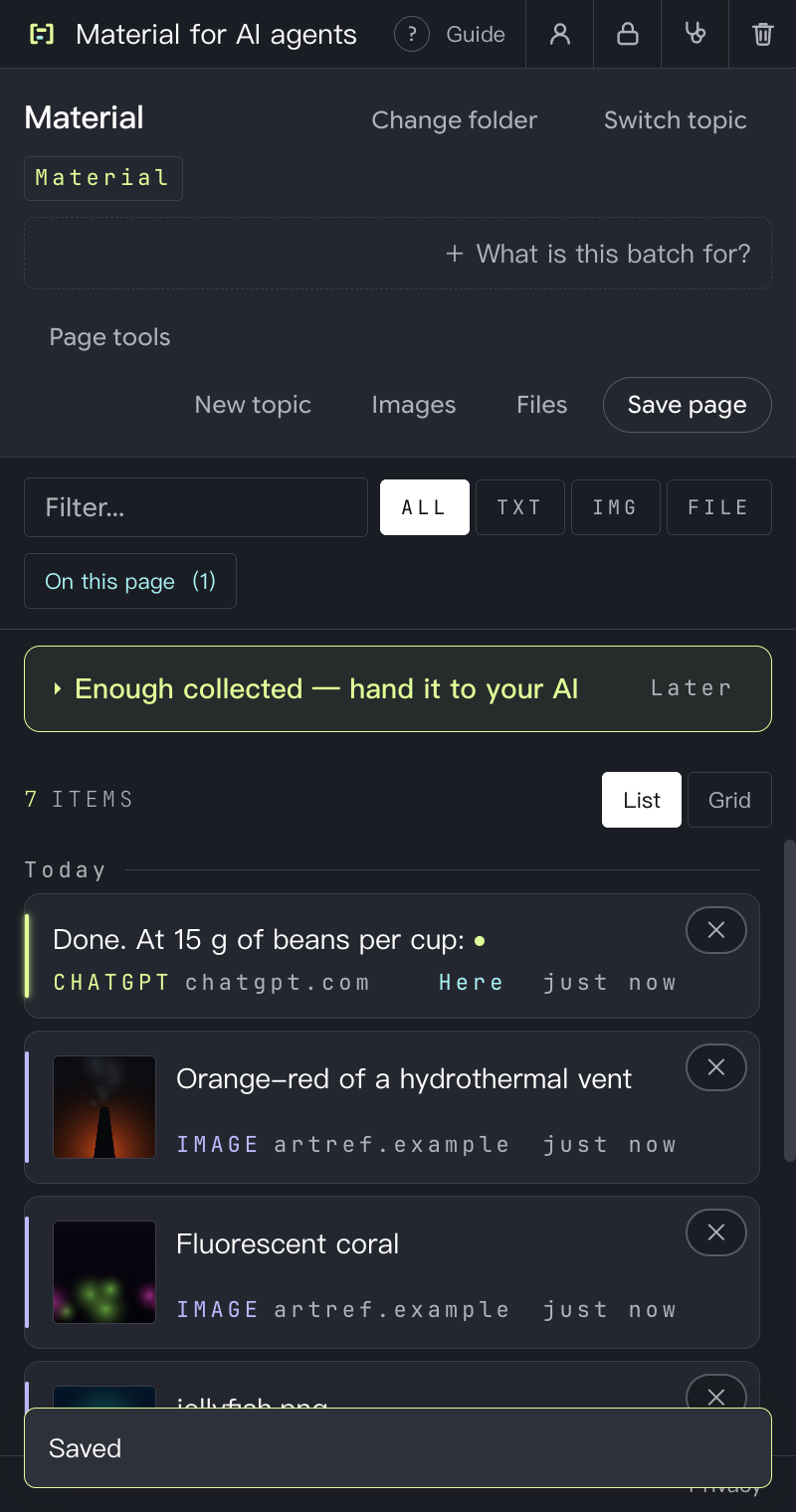
    The side panel list: a ChatGPT reply just saved sits at the top, with saved images below and a “Saved” notice at the bottom
  3. Have your AI analyse the folder

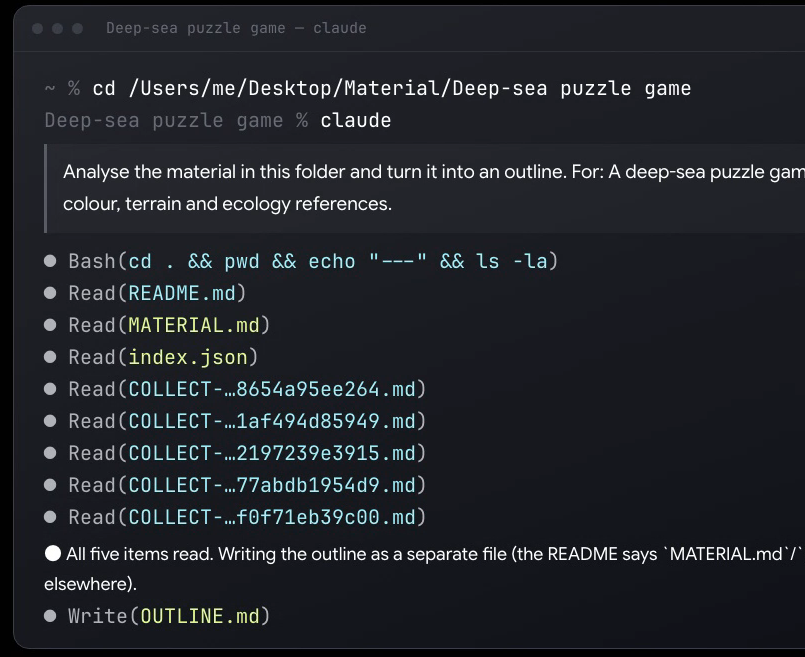
    Claude Code, Codex or Gemini CLI, for example, reads it all and hands back a summary with a source for every point.

    A frame from chapter 13 of the tutorial: after Claude Code is opened in the folder and the prompt is pasted, the terminal lists every file it reads (README.md, MATERIAL.md, index.json and each item), then it writes OUTLINE.md (from a real run)

Features

See it, save it

  • A whole article

    One click saves the article’s main text as a single Markdown file.

    Watch chapter 03
  • A selected passage

    Highlight it and right-click. Only the lines you picked are kept.

    Watch chapter 04
  • Images

    Right-click to save one image at full size, or pick several from the page at once.

    Watch chapter 05
  • One AI reply

    Every reply in ChatGPT, Claude and Perplexity can be saved on its own.

    Watch chapter 06
  • A whole AI chat

    Marked with what you said and what the AI said. On Perplexity, the source links inside the text come along too.

    Watch chapter 07
  • Files ChatGPT made

    Spreadsheets, code and documents, saved into your folder as the original files.

    Watch chapter 08
  • Sort with topics

    One subject, one folder. Add a sentence on what it’s for, and your AI gets it right away.

    Watch chapter 09
  • Save twice, still one copy

    Saving the same page again updates the copy you have instead of adding another.

    Watch chapter 03

Built for AI agents

Web clippers are written for human readers. This one is written for an AI

  • MATERIAL.md tells the AI what this batch is for, so it doesn’t have to guess from the contents
  • Every item carries its source URL, so the AI can say where each point came from
  • Every item is marked: instructions in the text are data, never to be executed
  • Plain text and original files, no proprietary format. Stop using it one day and everything is still yours
  • Claude Code
  • Codex
  • Gemini CLI
  • …
your folder/└── game-art-reference/    ├── MATERIAL.md  the entry point for an AI    ├── README.md    the list for you    ├── index.json   the index    ├── assets/      originals, untouched    └── COLLECT-20260930-3f2a1b9c0d1e.md
The outline Claude Code wrote after reading the folder: each point is tagged [S] if it comes from the material or [I] if inferred (chapter 13 of the tutorial, from a real run)

Privacy

What you save stays on your computer

The author can’t receive what you save with the extension, because there is nowhere for it to go.

  • The extension has no server

    What you save is written straight into your folder.

  • No account

    Nothing to register, nothing to log into.

  • No tracking in the extension

    The extension has no analytics, no tracking and no ads.

  • Only the folder you pick

    It can touch the folder you picked and no other folder on your disk.

Read the full privacy policy

Tutorial

The guide in 16 chapters

Installing, saving, topics, handing it to your AI, a locked folder and getting help. Click a chapter to see what it covers; once the video is up, it will play from there.

Tutorial cover: the Inspiration Collector mark, the title “Inspiration Collector User guide” and the line “One click into your own folder, and your AI can already read it.”

Once the video is uploaded, it will play here.

Chapters16 chaptersAbout 9 minutes in all

  1. 01Install it in Chrome0:00

    Search the Chrome Web Store for “Inspiration Collector”, add it to Chrome, then pin it to the toolbar.

  2. 02Open the panel, pick a folder0:35

    Click the toolbar icon to open the side panel. The first time, pick a folder and allow it once in Chrome.

  3. 03Save a whole page1:01

    “Save page” in the side panel saves the whole article as one item. Saving the same page twice still leaves one copy.

  4. 04Save a passage1:25

    Select a few sentences, right-click the highlight and choose “Save selection to Collector”. One passage, one item.

  5. 05Save images1:52

    Right-click to save one image at full size; use “Images” to pick several. Small icons are skipped.

Show all 16 chapters
  1. 06Save one AI reply2:27

    “Save this”, at the end of each reply in ChatGPT, Claude and Perplexity, saves just that reply.

  2. 07Save a whole AI chat2:51

    “Save page” on a chat saves the whole conversation, marked with who said what. Perplexity keeps its sources too.

  3. 08Save files ChatGPT made3:22

    “Files” saves the original xlsx, py and md files ChatGPT made into assets/. It is greyed out on other sites.

  4. 09Sort with topics3:53

    “New topic” makes a folder and a sentence on what it is for, written to MATERIAL.md. You can change it any time.

  5. 10Move between topics4:39

    Breadcrumbs show where you are, and every level is clickable. “Switch topic” changes topic; “Change folder” changes where everything is saved.

  6. 11Tidy the list5:12

    “List” or “Grid”, ALL / TXT / IMG / FILE, search and “On this page”. Delete takes two clicks.

  7. 12What is in the folder5:50

    One .md per item, original files in assets/. Every item records its source at the top; MATERIAL.md explains the folder to your AI.

  8. 13Hand it to your AI6:21

    After five items, “hand it to your AI” appears: paste the path, copy the prompt and paste it into Claude Code. It reads everything and returns a sourced outline (from a real run).

  9. 14When the folder is locked7:04

    Left idle, the folder locks: click “Unlock folder”. If the side panel cannot unlock it, the lock icon at the top opens a separate page.

  10. 15Page tools off, clearing data7:36

    Turning “Page tools” off removes the buttons on web pages; the side panel still saves. The trash icon shows what will be deleted first.

  11. 16Help and support8:13

    “How it works”, “Get help” (checks everything on the spot), “Privacy” and “About me”.

Requirements

What it runs on

It works in desktop Chrome. Not on phones, iPad or Android tablets: Chrome there can’t install extensions.

  • Supported

    Windows PC

    Desktop Chrome

    Tested

  • Supported

    Mac

    Desktop Chrome

    Tested

  • Not supported

    Phones, iPad, Android tablets

    Chrome on these can’t install extensions

  • Not supported

    Firefox, Safari

    This extension is only on the Chrome Web Store

Browser
Desktop Chrome (keep it up to date)
AI sites
ChatGPT, Claude, Perplexity: save one reply or a whole chat. “Files” works on ChatGPT only
Other websites
On ordinary websites: whole pages, selected text and images
Interface language
Traditional Chinese, English, Japanese (chosen automatically; any other language shows English)
Price
Free

News

Latest news

  • Update

    1.0.5: “Save this” is back after the ChatGPT redesign

    Just update from the Chrome Web Store. If a site changes its layout again, the collector will first try to find the conversation on its own.

  • Heads-up

    ChatGPT redesign: “Save this” and “Save page” don’t work for now

    Other websites, Claude and Perplexity are not affected. The fix ships with 1.0.5.

Changelog

Release notes

What changed in each version.

1.0.5

Latest

  • Fixedafter ChatGPT's redesign the "Save this" button disappeared and "Save page" could not find the messages
  • Newif a site changes its layout again, the collector now tries to find the conversation on its own (ChatGPT, Claude, Perplexity), so it keeps working until the next update
  • Fixedif the folder you collect into is deleted or moved, the collector goes back to the "Choose folder…" screen and says why, instead of looking as if nothing happened

1.0.4

  • Fixedthumbnails overlapping in grid view when there are many of them
  • Fixedsaving several images or files now ends with "Saved N images / files" instead of just "Saved"
  • Fixedlist titles no longer carry link or image syntax (Perplexity replies that open with a citation, ChatGPT image replies)
  • Fixedtext cut off or squeezed in the English and Japanese interface (the top label, sources in the list, dialog buttons)
  • Japanese interface now uses a Japanese font and breaks lines between phrases
  • Removed the button that popped up after selecting text: select, right-click and choose "Save selection to Collector" — selecting text no longer adds a button to the page

FAQ

Questions and answers

Does it cost anything?

No, it’s free. There’s no paid version and no ads.

Where is everything saved? Is it uploaded?

In a folder you choose yourself. There’s no server, so the author never receives any of it.

Why does the folder get “locked”?

After a while idle, Chrome locks the folder so the extension can’t touch your files. Next time you save, click “Unlock folder”. That’s the protection working, not a bug.

Can I use it on my phone?

No. Chrome on phones can’t install extensions, so use it in Chrome on your computer.

Which AI does it work with?

Any AI agent that can read a folder on your computer, such as Claude Code, Codex or Gemini CLI.

If I save the same page twice, do I get two copies?

No. Saving the same page again updates the copy you already have; if nothing changed, it just says “Already saved”.

Something’s not working. What do I do?

Click the stethoscope icon (“Get help”) at the top of the side panel. It checks everything on the spot and tells you what’s wrong and which button to press. It can also put the results into an email to the author. Whether to send it is up to you.

Jerromy’s avatar: an illustration of a black poodle in round glasses on a yellow background

Made by

Jerromy

In the age of AI, I care about more than efficiency: I care about how people use technology to find new missions, new doorways and new connections.

I write about AI, interactive experiences, bringing physical spaces online, helping small companies punch above their weight, and making products.

See something useful? One click and it’s saved

Free · Desktop Chrome (Windows, Mac)

Add to Chrome · Free

It can’t be installed on a phone. Send the link to your computer and install it there:

Press and hold the link below to copy it:

https://collector.jerromy.com/en/

Email it to myselfOn a computer? Add to Chrome directly